Iru: New and Migrated User Setup (formerly Kandji)

Jan 12, 2026
 431
431
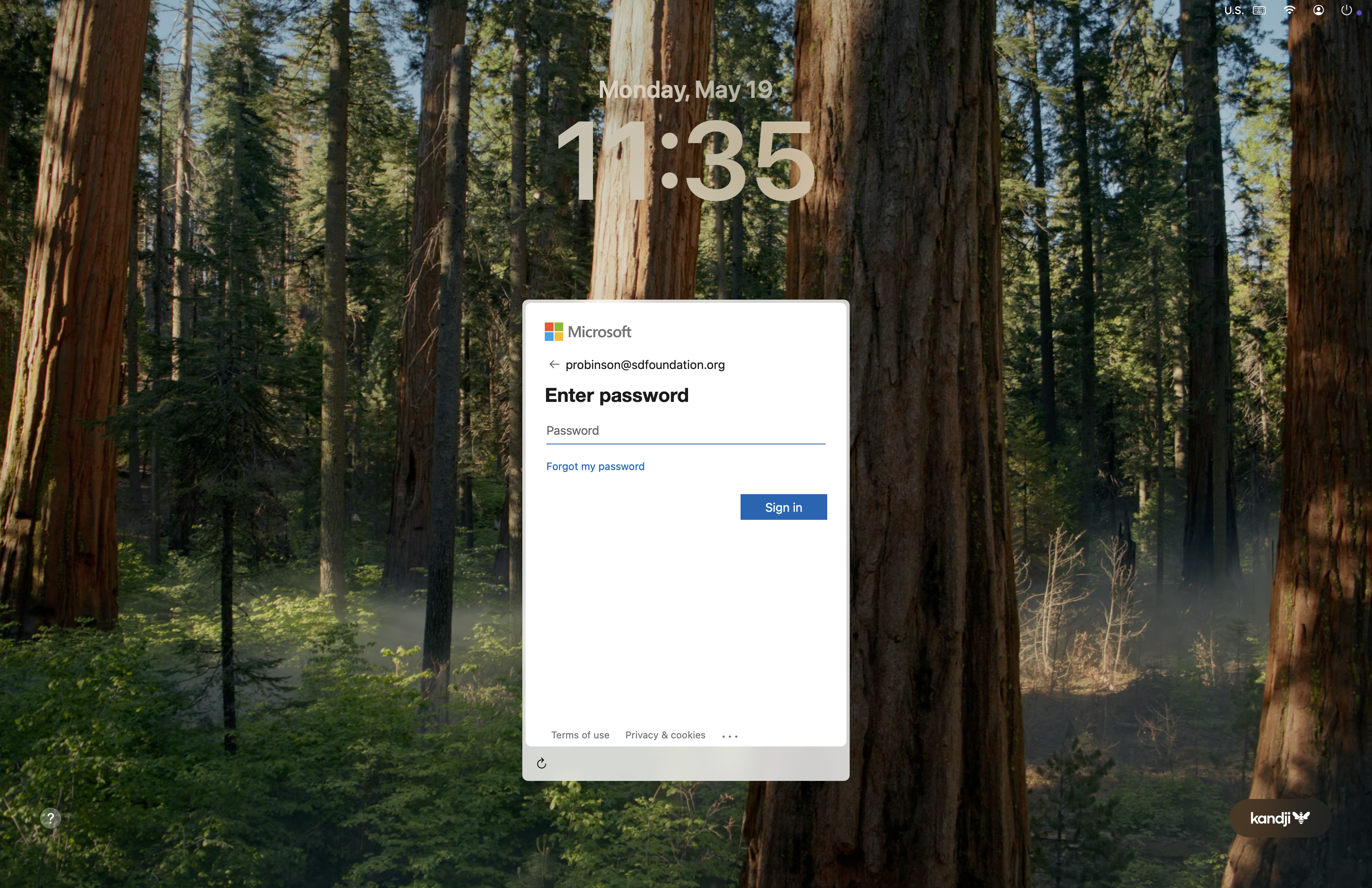
- Login at the Microsoft prompt as the end user using the full email address. ex: [email protected]

- Enter the temporary password created for the new end user
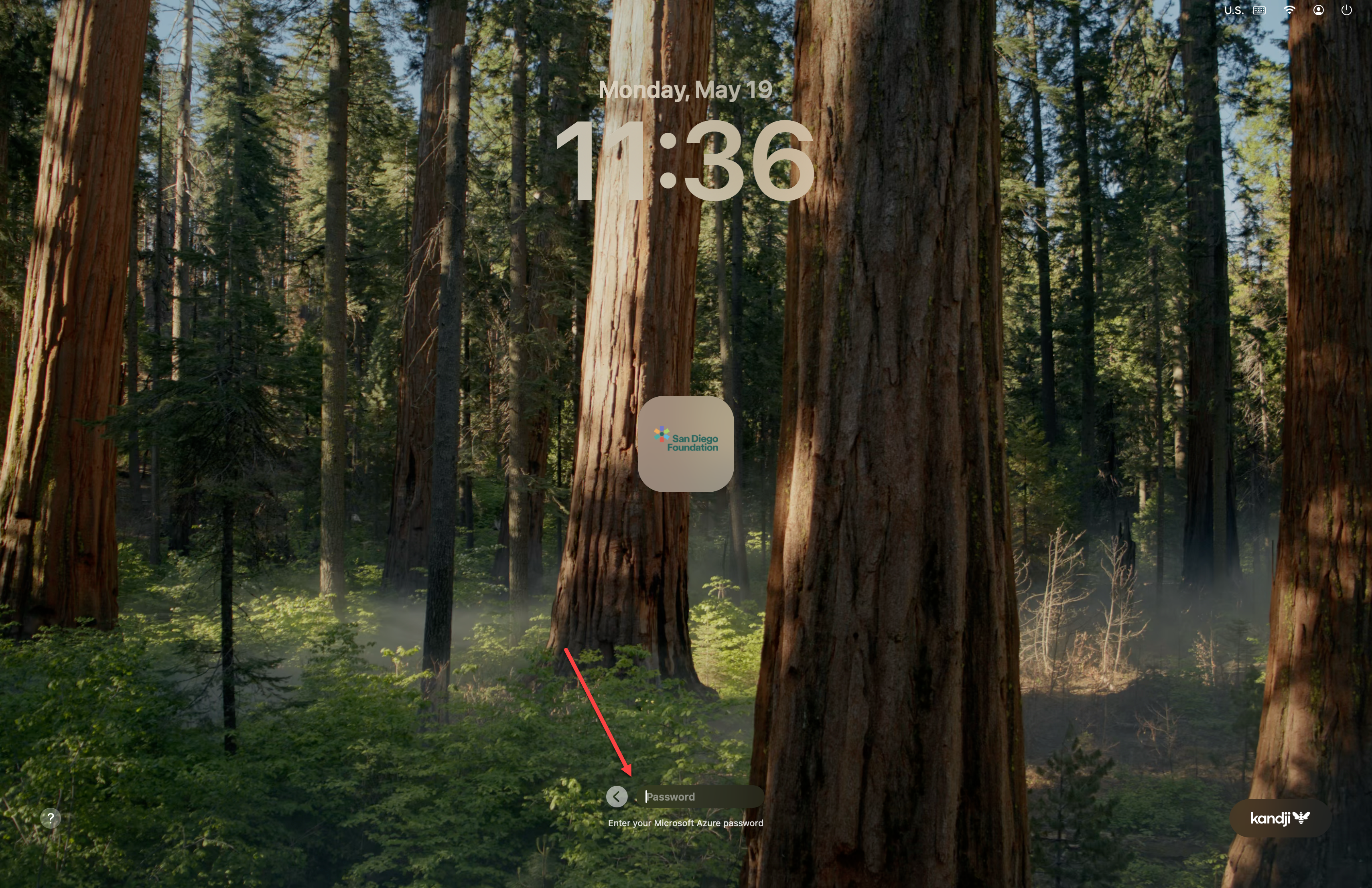
- At the next screen where you’re prompted for your Microsoft Azure password, please enter your Microsoft password again.
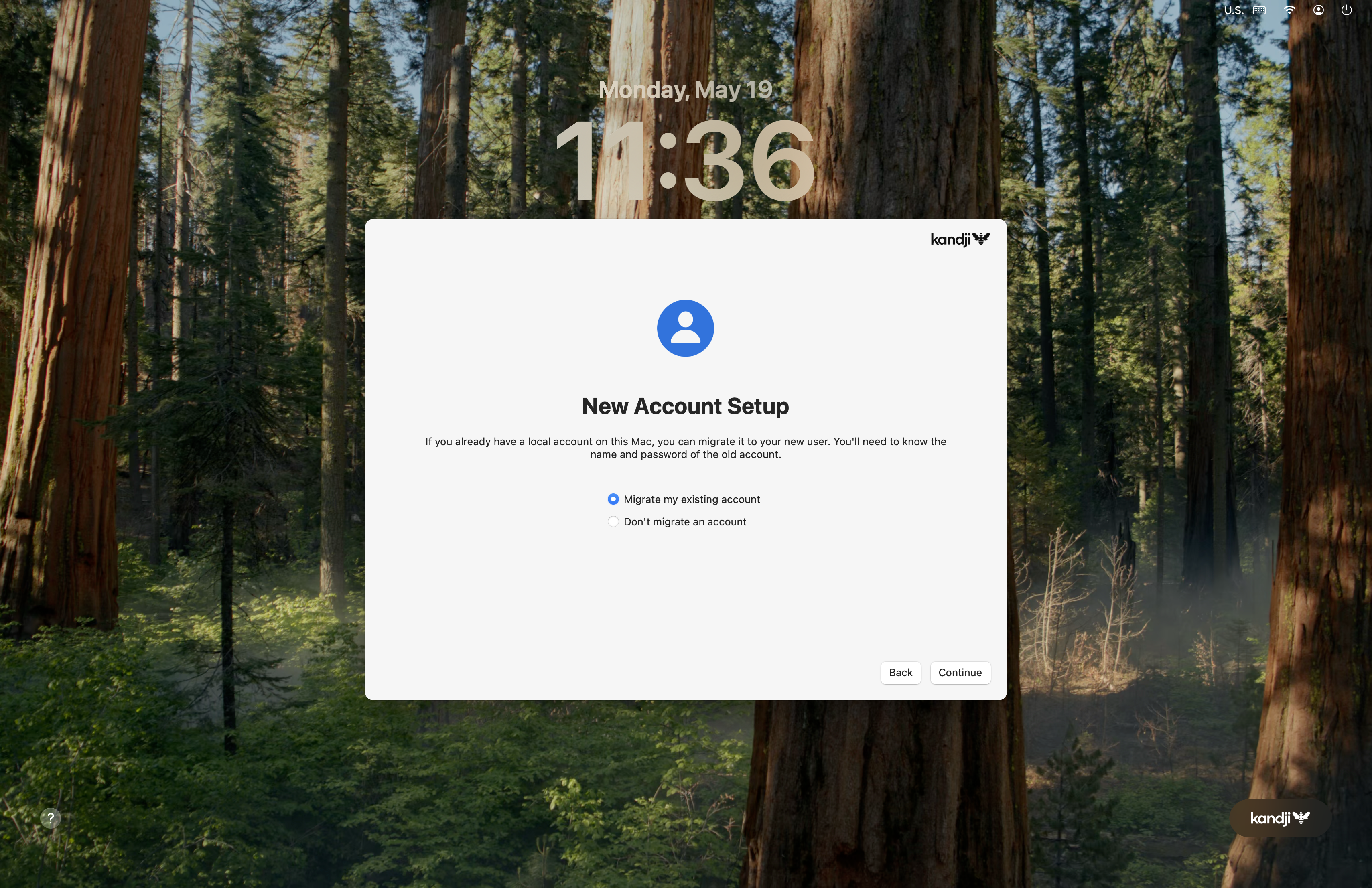
- You’ll then be presented with a New Account Setup screen – choose “Migrate Account” if you have an existing account. If you are a new user, select Don't migrate an account, and follow the prompts. See the instructions below based on your situation.
Existing Account
- Choose your username from the dropdown list
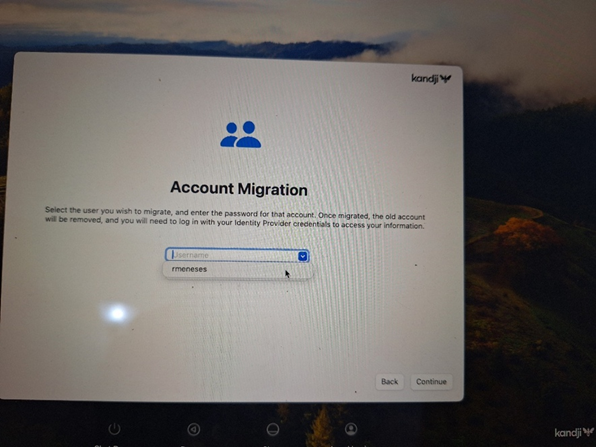
- Then enter your computer login password. Note: This is the password you used for sign-in previously, which may be different than your Microsoft password. After this process, the login will be synced between Microsoft and Mac sign-in.
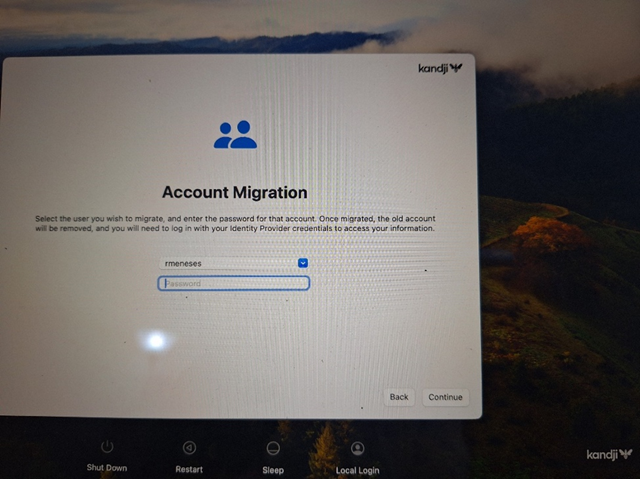
- When asked if you want to migrate the user, choose “Migrate Account” if you have an existing account. If you are a new user, select New User, and follow the prompts

New Account
- Click on Create New
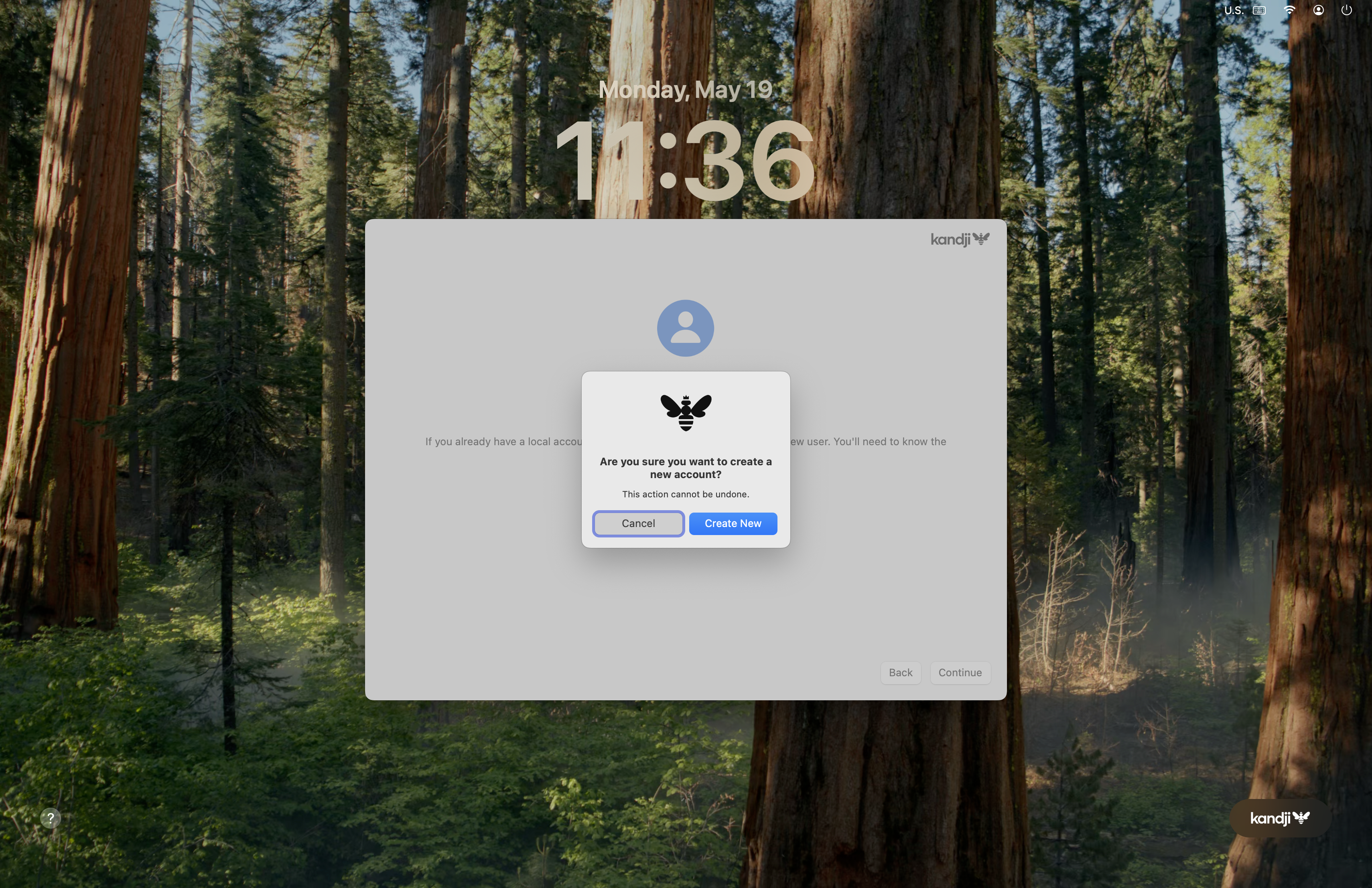
- Follow the prompts. Select what will help you do your job. If you need anything, click Not Now or Set up Later. NOTE: You will be prompted to enable Apple Intelligence; decline it.
- When your account is set up, you will see the following prompt and then be asked to sign in again to Microsoft