You are using an unsupported browser. Please update your browser to the latest version on or before July 31, 2020.
close
You are viewing the article in preview mode. It is not live at the moment.
Welcome to SDF's staff support center!
Home > Technology > Adjusting Display Settings
Adjusting Display Settings
print icon

Windows 11 – Adjust Display Settings

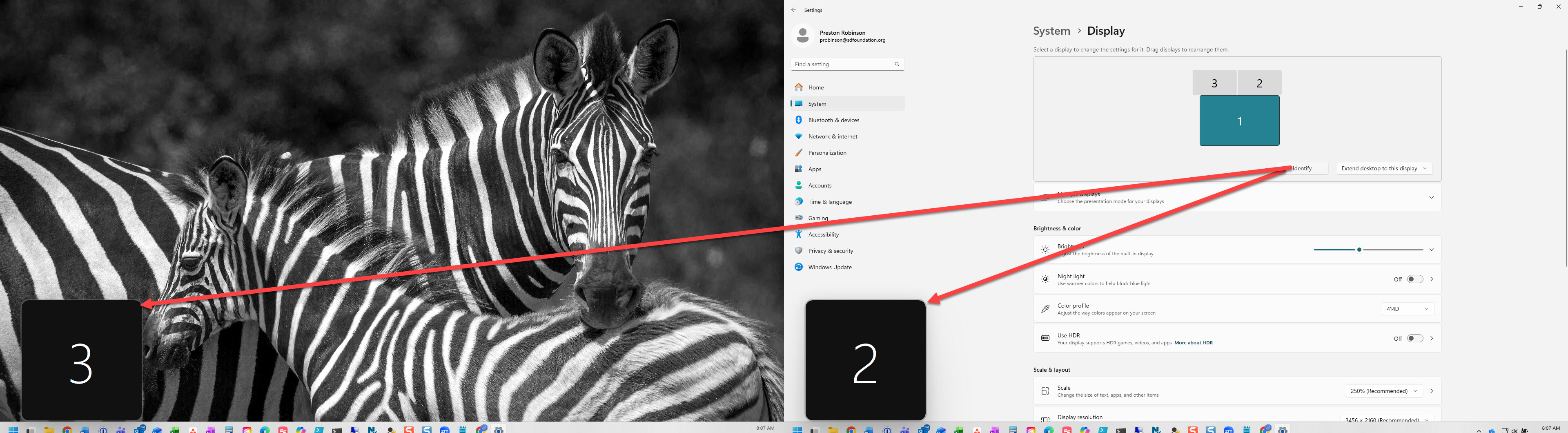
  1. Right-click an empty spot on the desktop and choose Display settings
    (or go to Start menu → Settings → System → Display).
 
  1. Select the display you want to adjust at the top of the window. You can do any of the following changes to impact how you view the content on your computer.


TIP: Use 'Identify' to display each screen’s number.

  • Change the display location: Click and drag the digital display to the desired location.
  • Change Display Orientation: Use the Display Orientation dropdown to select (Landscape, Portrait, Landscape (flipped), Portrait (flipped)).
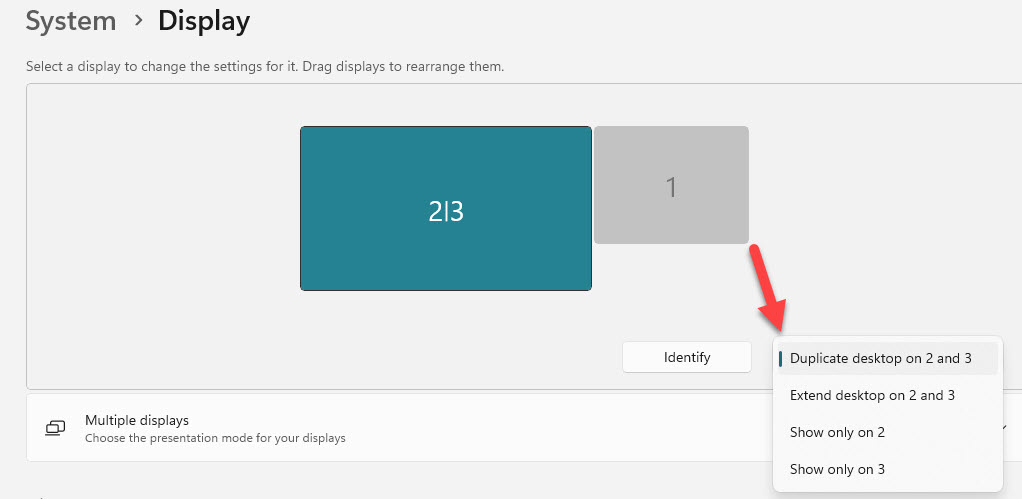
  • If a display is missing or duplicated or you do not want to see multiple displays:
  • Click the drop-down next to Identify and then the display you would like to adjust the preferences on.
    • Duplicate desktop… = Two or multiple displays will be identical 
    • Extend desktop = Makes some or all your displays act as one large desktop
    • Show only on... = Turns off all but one selected display. If you do not want to use multiple monitors, use this option

TIP: After you move the displays around, use 'Identify' to ensure the physical display matches the configuration in Display Settings.

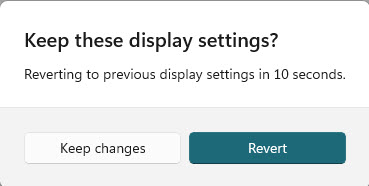
  1. When prompted, click Keep changes. You only have 15 seconds to confirm your settings.
 

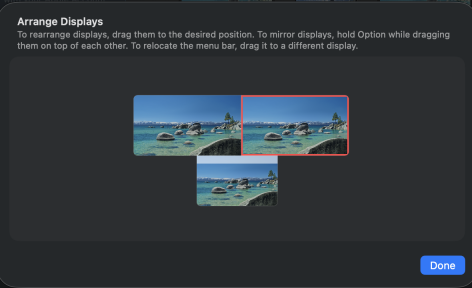
Mac – Arrange Displays


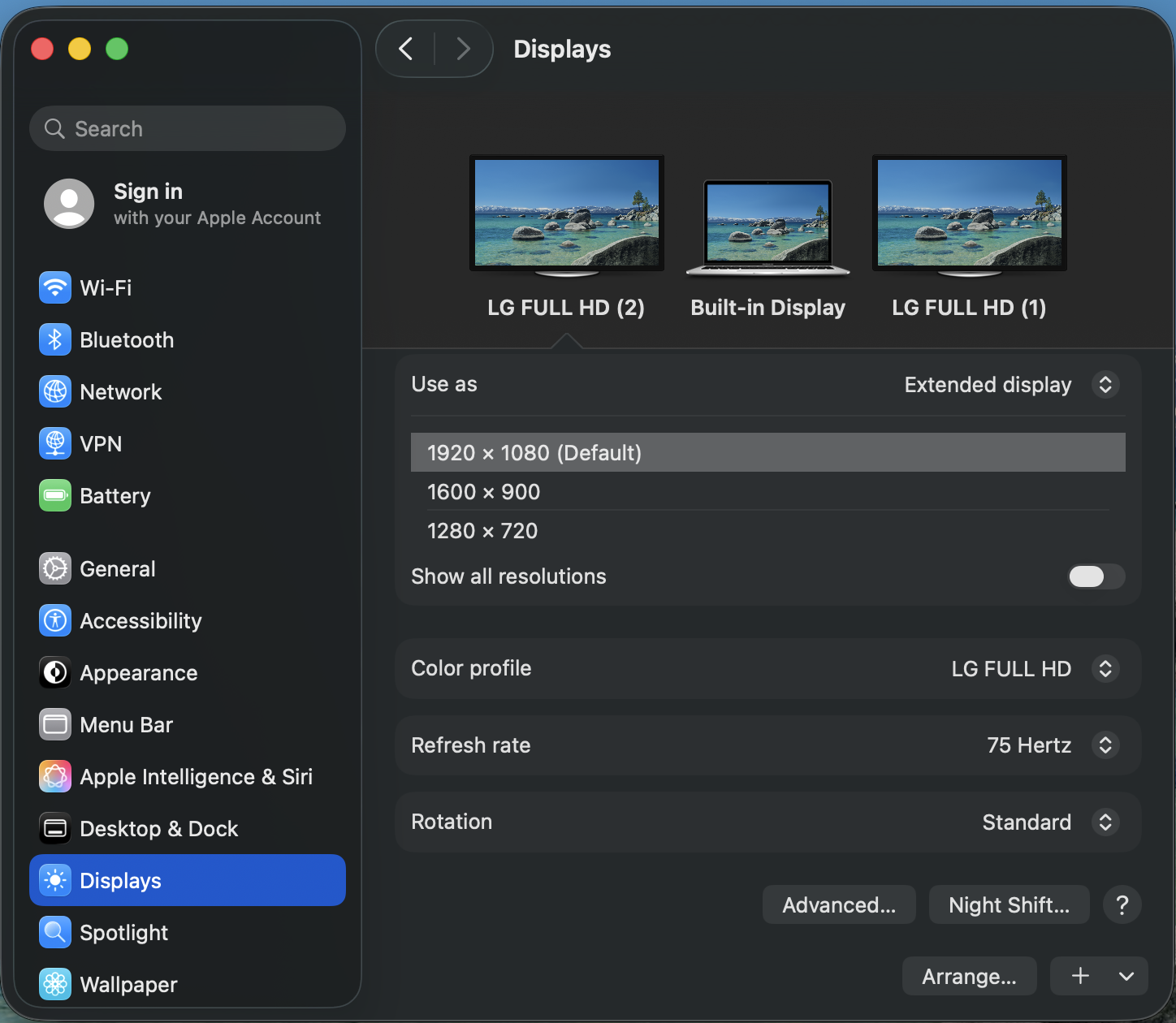
  1. Open the Apple menuSystem Settings.
  2. Select Displays in the sidebar.
  3. Click Arrange in the bottom right.
  4. Drag the display you want to reposition.
  5. Click Done.
 

Change Display Orientation (Mac)

  1. In the main Displays window, find Rotation.
  2. Choose a rotation: 90°, 180°, 270°, or Standard.
  3. Click Confirm to keep the change (it will revert if not confirmed).


Feedback
0 out of 0 found this helpful

scroll to top icon