


Set up 1Password on a New Device Using QR Code

Jan 30, 2026
309

Important:
These steps only work if you already have 1Password installed and signed in on another device (computer, tablet, or phone).
Use this guide to sign in to 1Password on a new or replacement laptop using a QR code.
Step-by-Step Instructions
On Your Existing Device
- Open 1Password.
- Select All Accounts (top-left corner).
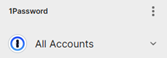
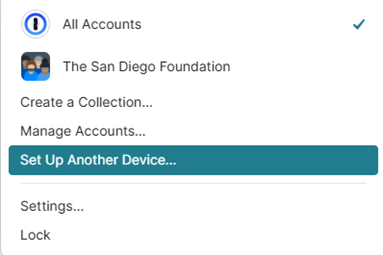
- Click Set up another device…
NOTE: If you belong to multiple organizations, choose the organization you want to connect to the new device.
On Your New Device
- Open 1Password.
- Click Sign in.
- Select Scan QR code.
- When prompted, allow access to your camera.
Link the Devices
- Use the new device’s camera to scan the QR code displayed on your existing device.
- After scanning, a link code will appear on the new device.
- Verify that the link code matches on your existing device and approve the connection.
Complete Authentication
- If Duo (or another MFA method) is enabled, complete the two‑factor authentication when prompted.
Tips & Reminders
- You do not need your Secret Key when using the QR setup method.
- Never share screenshots of QR codes or link codes.
- Contact IT support if you see an error or cannot complete the setup.
_Last updated: 1/30/2026 PDR

