PowerPoint Presentation Mode Disables ClickShare Screen Sharing

Last updated: Apr 24, 2026
324
views

In this guide, you will configure both your computer’s display settings and PowerPoint.
Display Settings
Open Display on your computer using one of the following steps
Windows
- Press Windows key + I → click System → Display
or - Right-click on the desktop → Display settings
or - Press Windows key + P→ click Extend
Mac
- Click the Apple menu → System Settings → Displays
Reminder: The Clickshare app will show up on the Mac desktop as a CD. To start the ClickShare, click the CD and launch the app.
Reminder: Allow Permissions (first time only): If and when prompted, allow: ClickShare, Screen Recording, & Microphone.
Manual Steps: Go to Apple menu → System Settings → Privacy & Security → Enable ClickShare under Screen Recording
PowerPoint
-
Open your PowerPoint file on your laptop.
-
Click on the Slide Show menu
-
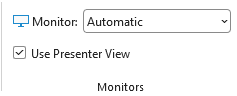
Find Monitors in the ribbon
-
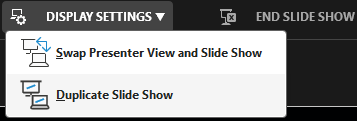
Check Presenter View to turn it on in another window. If the Presentation is on the wrong window, in the Presentation View click Display Settings at the top left → select Swap Presenter View and Slide Show.